
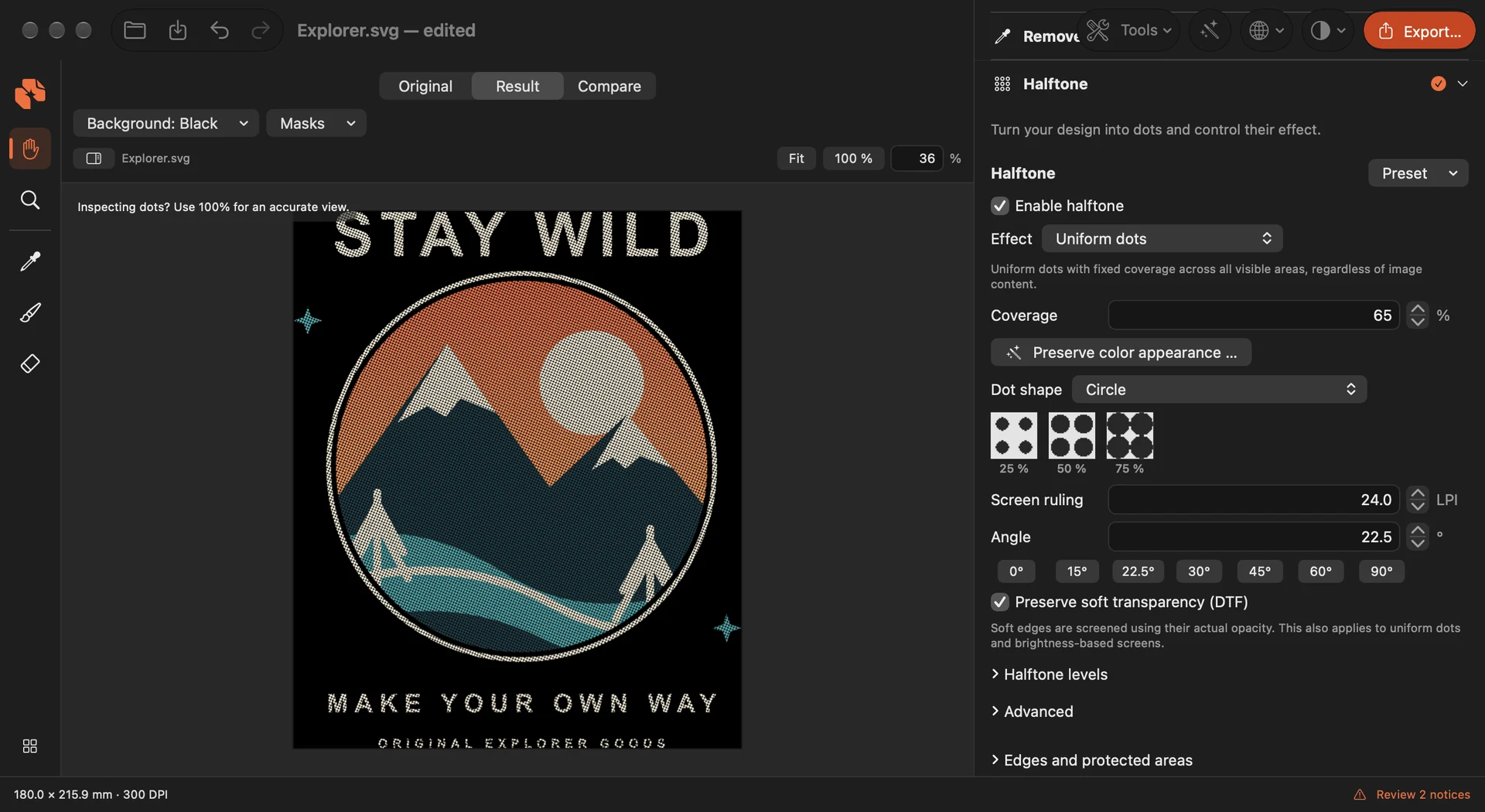
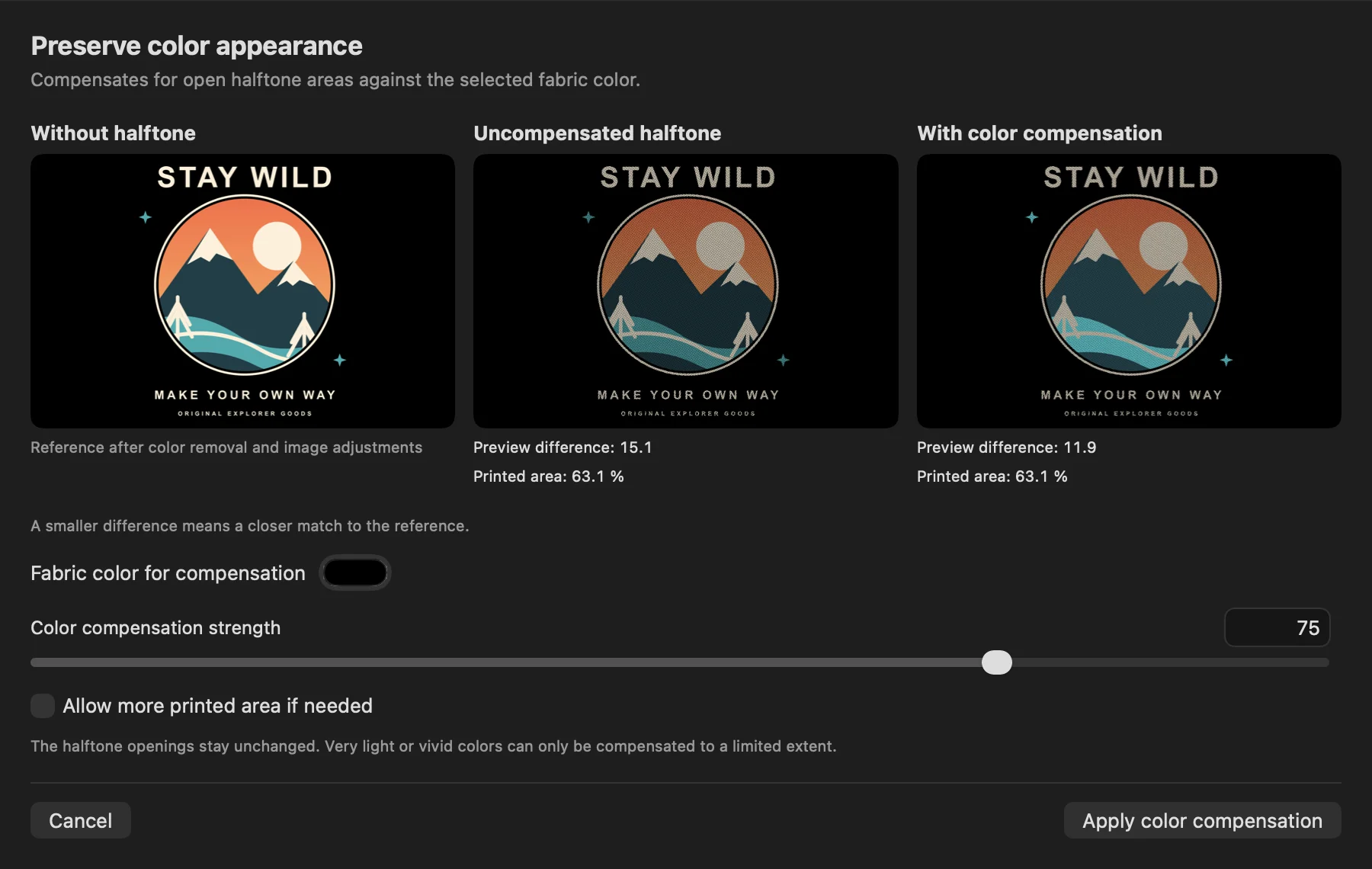
Turn solid areas into dots.
Choose how fine the halftone should be and what shape the dots take. The preview shows how these changes affect your design.
THE FEATURES
These tools help you edit and prepare your artwork. The views below show what the app looks like and what you can do with it.
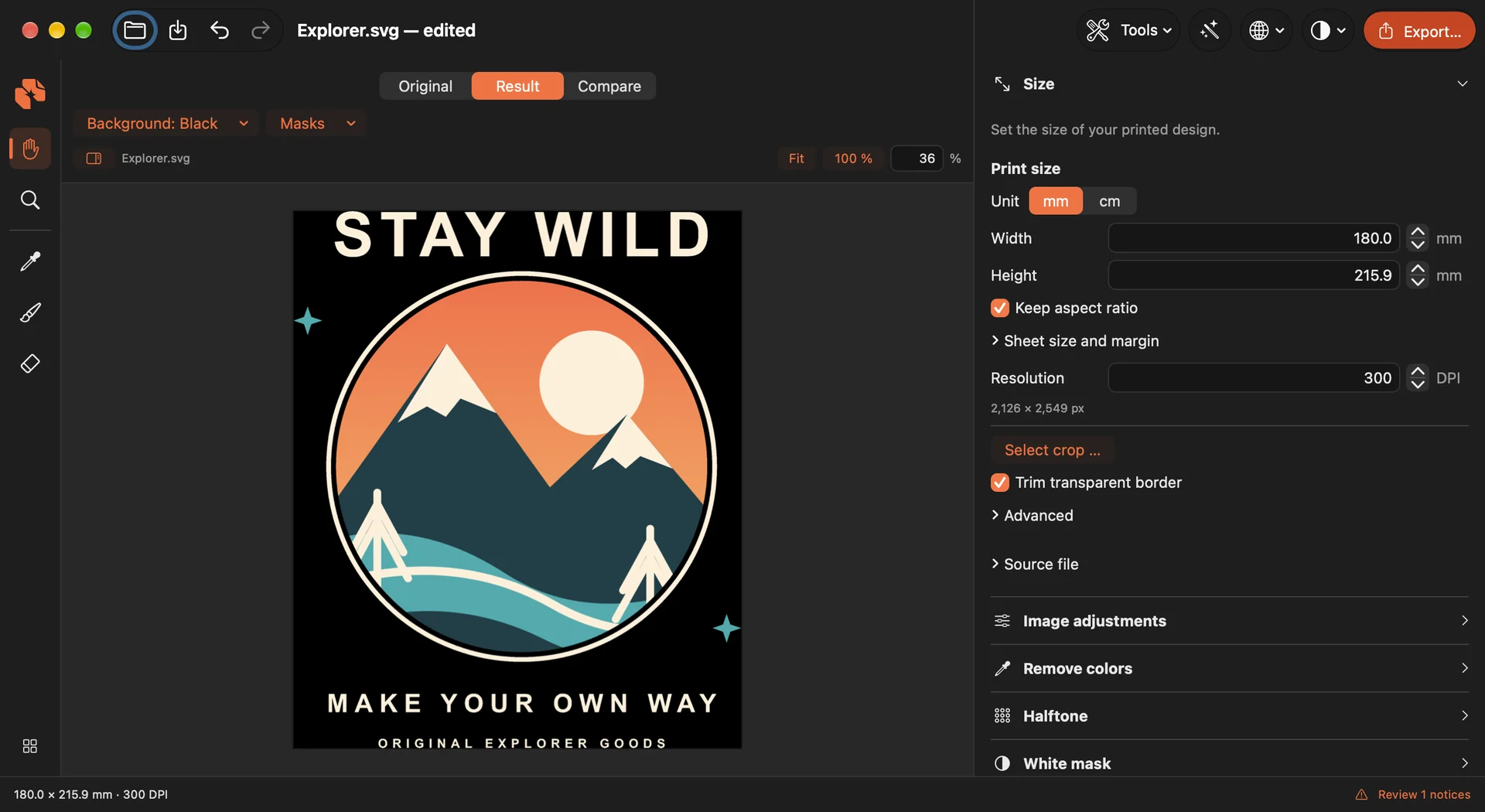
Set the printed size and resolution of your design. Crop empty edges and compare your changes with the original.
Set the printed size and resolution of your design. Crop empty edges and compare your changes with the original.
A halftone turns your design into small dots. Choose their size, shape and arrangement, and see the result in the preview.
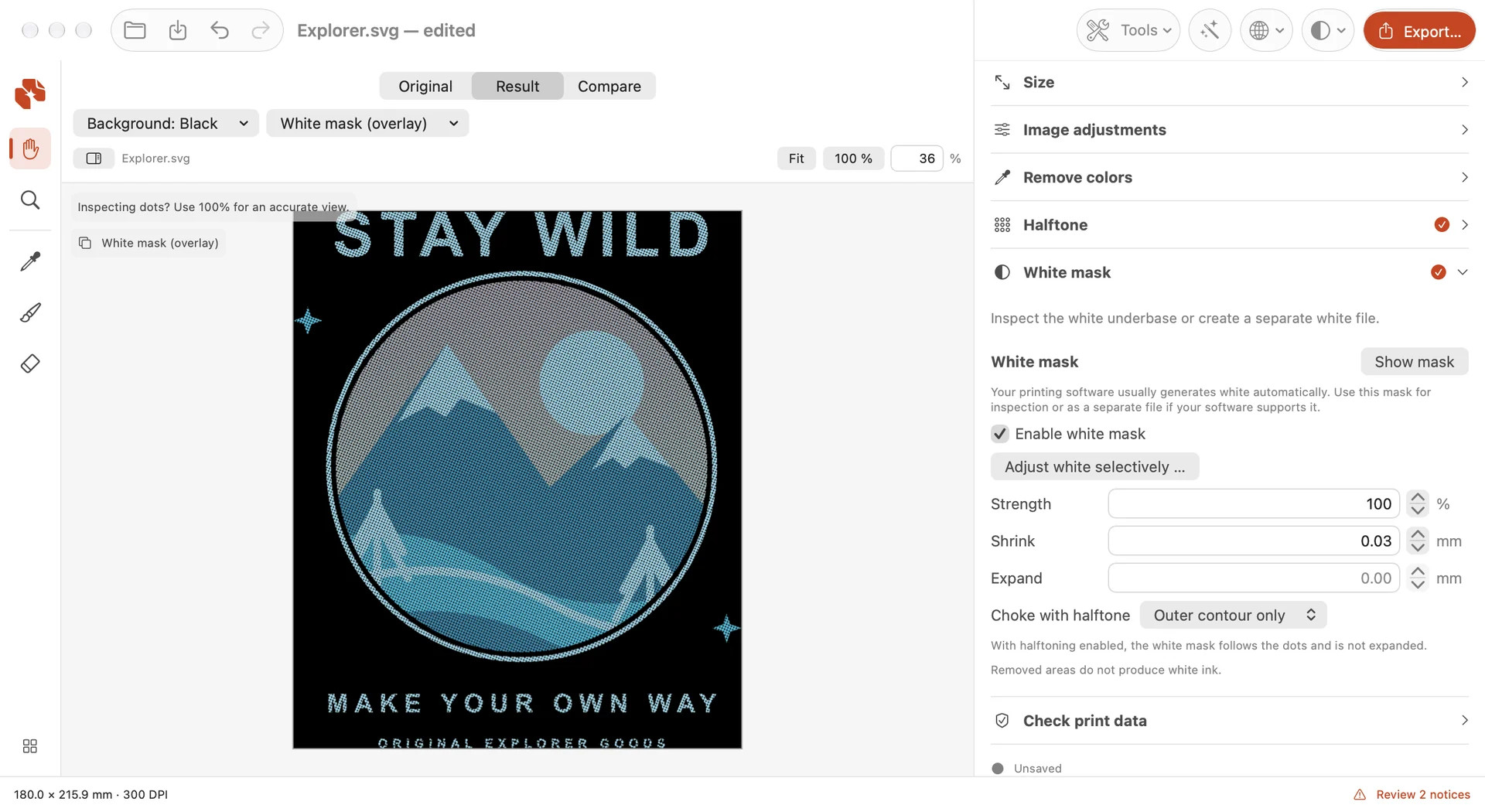
The white mask defines where a white layer should sit under your design. Adjust its opacity and pull the white edges inward.
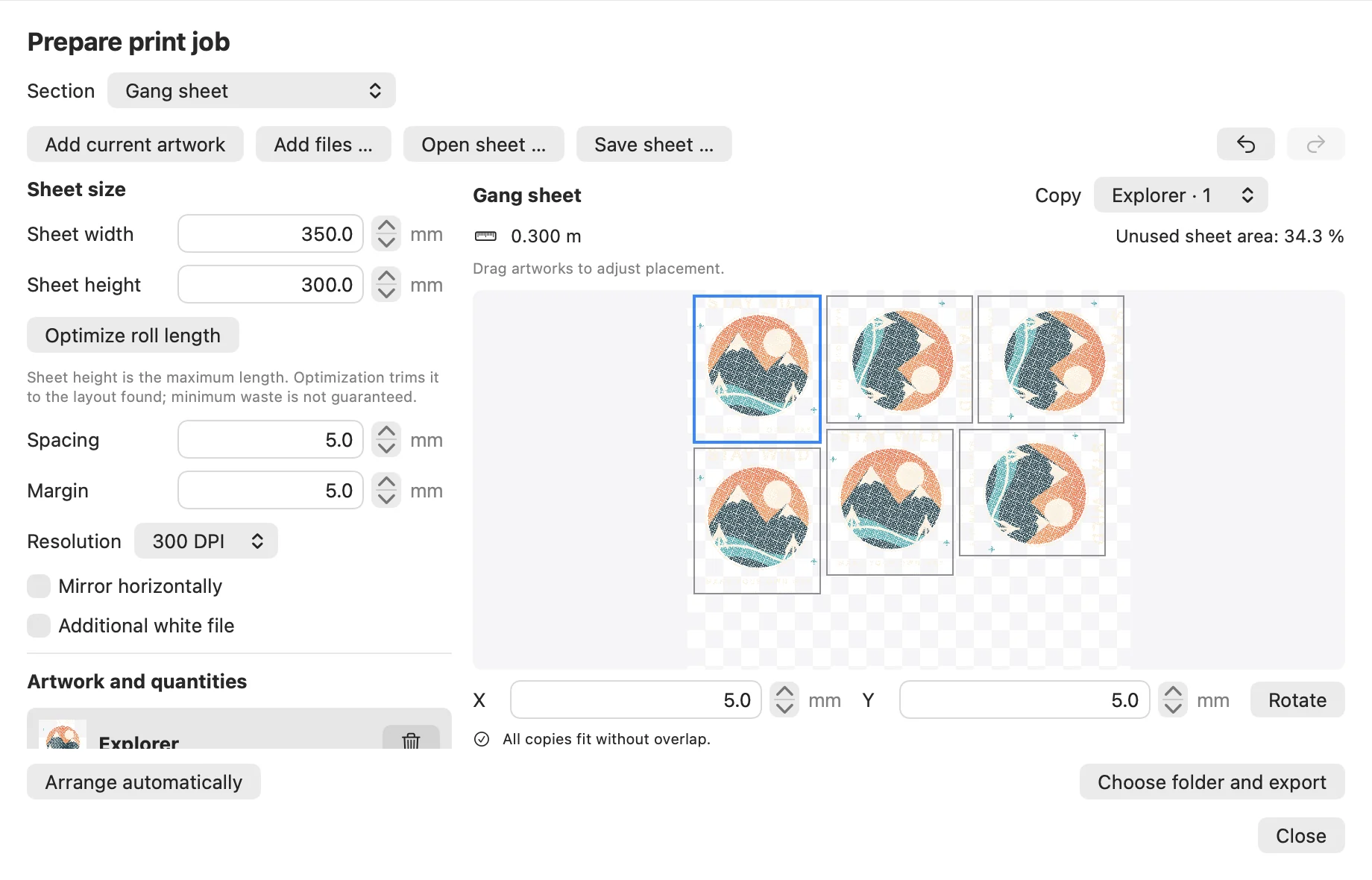
Arrange several designs on one sheet, called a gang sheet. See how much space they need and how long the printed film will be.
Adjust brightness and colors or remove an unwanted color. You can protect important details while you work.
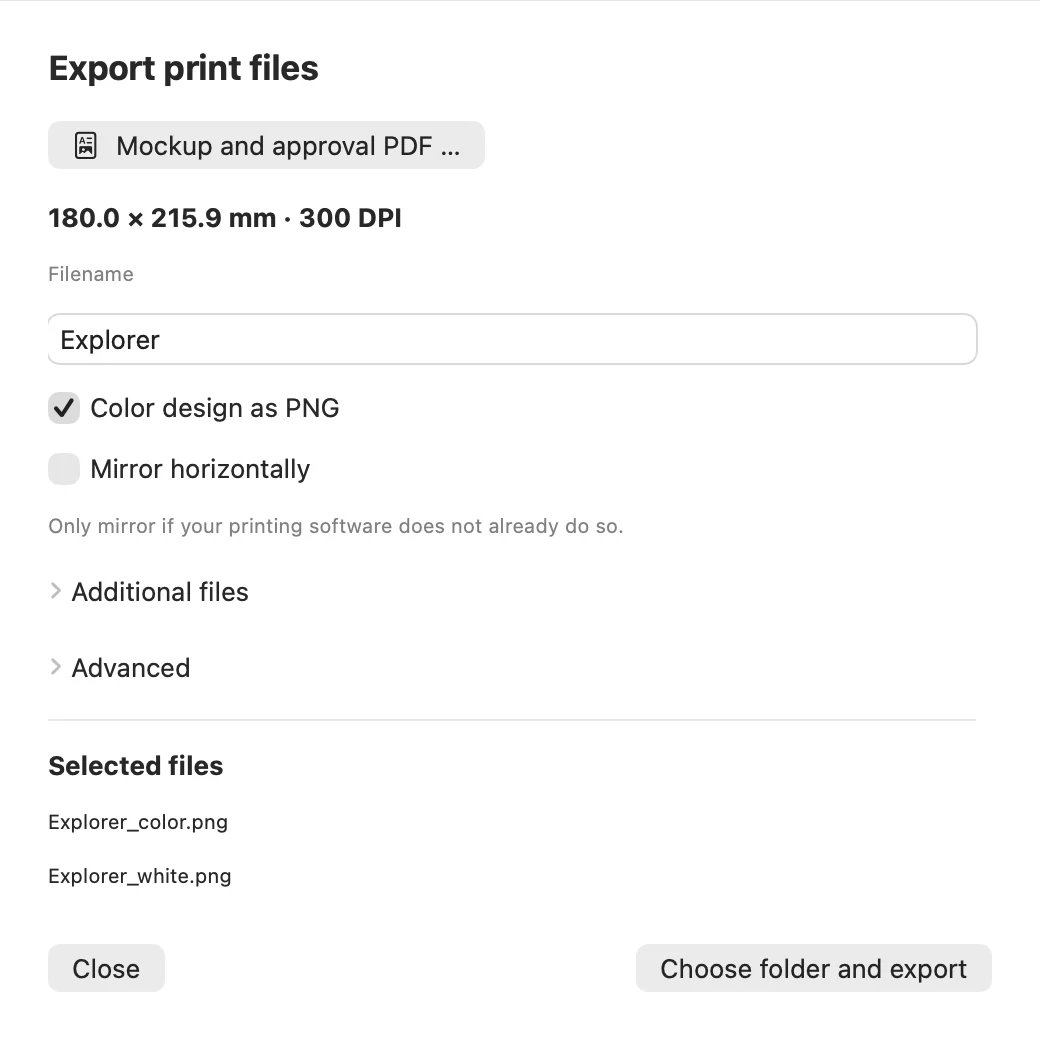
Save your design as a PNG with a transparent background. Add a white mask and job sheet if you need them. Save your project to continue editing it later.
Choose how fine the halftone should be and what shape the dots take. The preview shows how these changes affect your design.
Check where white sits under your design and adjust its edges. Save the white mask as a separate file if your printing software supports it.
Remove a photo’s background or enlarge an image with AI. Both run on your Mac. AI enlargement needs macOS 15 or later.
The manual explains each step, from opening a design to saving your print files.
Questions and helpYOUR DESIGN TO WEAR · DINGFEIN
Discover customizable T-shirts, hoodies and sweatshirts in my online shop DINGFEIN. Choose a design or create your own with your text, image or artwork.